
- Emergency access lets a trusted person request your vault. If you do not refuse within the waiting period, they get in.
- Bitwarden, Proton Pass, NordPass, Keeper and LastPass offer it. You need a paid plan to set it up.
- 1Password, Dashlane, Apple Passwords and Google Password Manager have no such feature at the time of writing (October 2026).
A password manager turns dozens of separate problems into one. If a trusted person can reach your vault after your death, they can find every account you have. Several managers have a built-in way to allow this, usually called emergency access.
How emergency access works
The details differ by manager, but the pattern is the same.
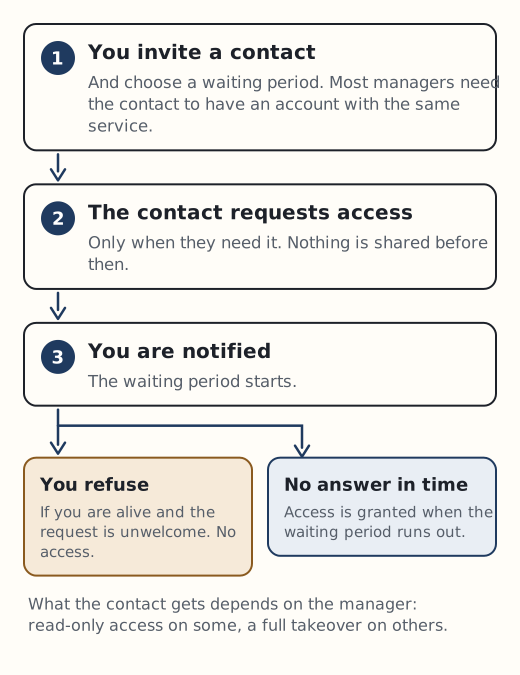
- You invite a contact while you are alive and choose a waiting period. Most managers require the contact to have an account with the same service.
- The contact requests access when they need it. Nothing is shared before then.
- You are notified and the waiting period starts.
- You can refuse. If you are alive and the request is unwelcome, you decline it.
- If you do nothing, access is granted when the waiting period runs out.
The last step is often misunderstood. Bitwarden, Proton, NordPass, Keeper and LastPass all state that access is granted automatically when the wait ends without a response. Your silence is the approval. That is what makes it work after a death, and why the wait should be long enough for you to notice an unexpected request.
Which managers have it
Details come from each company’s own pages at the time of writing. Features change, so check the linked help pages.
| Manager | Feature name | Which plans | Wait time | What the contact gets |
|---|---|---|---|---|
| Bitwarden | Emergency access | Premium, or a member of a paid Families, Teams or Enterprise organisation | Set by you, minimum one day | View (read all items) or Takeover (full control) |
| Proton Pass | Emergency Access | All paid Proton plans | Set by you: 1, 2, 3, 7, 14 or 30 days | Full access to the Proton account: email, passwords, files |
| NordPass | Emergency Access | Premium and Family | Fixed at 7 days | View-only access to passwords and notes |
| Keeper | Emergency Access | Keeper Unlimited and Keeper Family only | Set per contact, from immediately up to three months | Read-only access |
| LastPass | Emergency Access | Premium and Families | Set by you; options not published | “One-time access to your vault” |
| 1Password | None | Not applicable | Not applicable | Nothing. Uses a printed Emergency Kit instead |
| Dashlane | None (discontinued) | Not applicable | Not applicable | Nothing. Recommends an encrypted export file |
| Apple Passwords | None | Not applicable | Not applicable | Nothing. Legacy Contact excludes Keychain passwords |
| Google Password Manager | None | Not applicable | Not applicable | No password route. Whether Inactive Account Manager shares passwords is not published |
Points worth knowing
Bitwarden
Takeover is not read-only. The contact sets a new master password, gets permanent read and write access, and Bitwarden removes any two-step login methods. The contact can use a free account, but it must be on the same Bitwarden server: a US-cloud account cannot pair with an EU-cloud one. If your Premium lapses, you cannot change your contacts.
Proton
Emergency Access works across the whole Proton account, not only Pass. You can name up to five contacts, and both of you need a Proton Mail address.
NordPass and Keeper
NordPass contacts can be on the free plan. Keeper allows up to five contacts, each with a Keeper account and a sharing relationship with you in Keeper. Keeper’s feature is not available on its Business or Enterprise plans.
LastPass
The contact must be a LastPass user. If they are not, they are invited to sign up.
1Password
1Password’s official route is the Emergency Kit, a PDF with your sign-in address, email, Secret Key and a space to write your account password. 1Password suggests giving a copy to “someone you trust, like your spouse or someone in your will”. Family account recovery is not a substitute: the person being recovered must set a new password themselves, so it cannot hand a dead member’s vault to anyone.
Dashlane
Dashlane’s emergency contact feature existed only in its desktop app, which it no longer offers. It now suggests exporting an encrypted file with a separate password, storing the file safely, and sharing that password with the trusted person through a Dashlane Secure Note.
Apple and Google
Apple Legacy Contact gives access to many iCloud data types, but not iCloud Keychain: no passwords or passkeys. Google’s deceased-user form says: “We cannot provide passwords or other login details.” With either, the practical options while you are alive are shared password groups (Apple) or sharing passwords with your Google family group.
Emergency access only helps if your contact knows it exists. Tell them which manager you use and that they are set up, and mention it in your letter of instruction.
Choosing between them
For a head-to-head of the three most common choices, see 1Password vs Bitwarden vs Proton Pass for emergency access. If your manager has no emergency access, read where to keep the master password next.