
- Work through the list in order: inventory first, then provider settings, then access, then paperwork.
- Use the official legacy tools where they exist. In US law they can override your will.
- Keep passwords out of your will. Write down where things are, not the secrets themselves.
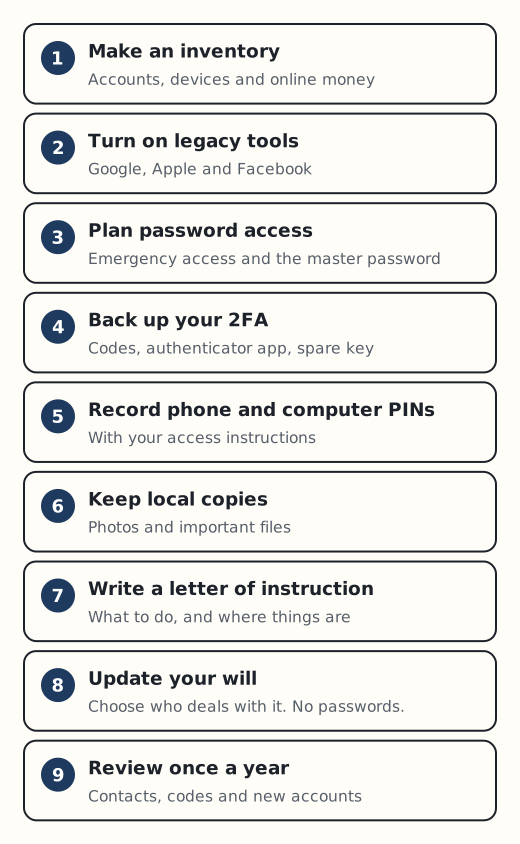
This is the short version of the whole planning section. Each step links to a fuller guide. Most people can do the first five steps in an afternoon.
1. Make an inventory
List your accounts, devices and online money: email, cloud storage, photos, social media, banks and payment apps, subscriptions, domains. Note who provides each one and what you want done with it. Keep account numbers and passwords off this list.
How to do it: make a digital asset inventory.
2. Turn on the providers’ own legacy tools
Three big providers let you name someone in advance:
- Google: Inactive Account Manager, at myaccount.google.com/inactive. You can name up to 10 trusted contacts and choose what each one receives.
- Apple: Legacy Contact, under Settings > [your name] > Sign-In & Security > Legacy Contact. Each contact gets an access key. Print it or send it, because Apple cannot replace a lost key.
- Facebook: a legacy contact who can look after a memorialised profile, or a choice to have the account deleted after your death.
These settings matter more than you might expect. Under RUFADAA, the US model law adopted in almost every state, a direction given through a provider’s online tool overrides a contrary direction in your will.
Microsoft, X, LinkedIn, TikTok and Instagram offered no comparable advance tool, as far as could be checked at the time of writing (October 2026).
3. Decide how your passwords will be reached
If you use a password manager, check whether it offers emergency access. Bitwarden, Proton, NordPass, Keeper and LastPass do on paid plans. 1Password does not, and Dashlane’s old feature has gone. Compare them in password managers and emergency access.
Then decide where the master password lives. The UK’s National Cyber Security Centre (NCSC) says writing passwords down can be fine if you keep them somewhere safe. The guide to the master password, later in this section, compares the options.
4. Back up your two-factor authentication
Two-factor authentication (2FA) is the second check after your password, usually a code from your phone. Print backup and recovery codes, make sure your authenticator app is backed up, and register a spare security key if you use one. Details are in 2FA and inheritance.
5. Record your phone and computer PINs
AARP says the single most important thing to share is your smartphone passcode, because an unlocked phone opens many other accounts. Apple will not remove a passcode without erasing the iPhone. A Windows PC or Mac with encryption turned on may be impossible to open without the login details or recovery key, and Microsoft cannot recreate a lost BitLocker key. Put these with your other access instructions, not in your will.
6. Keep local copies of what matters
Which? recommends local backups of important files on a USB stick or external drive, with duplicates. This protects photos and documents if an account is deleted for inactivity before anyone gets to it.
7. Write a letter of instruction
A letter of instruction (often called a letter of wishes) sits alongside your will. It says what you want done with each account and where to find the access details. It is not legally binding, but it is the document your family will actually use. See how to write a letter of instruction.
8. Update your will and choose who deals with it
Which? advises against listing specific digital assets in the will itself, because they change often. Do not put passwords in it: in England and Wales, a will becomes a public document after probate.
Decide who will deal with your digital affairs. In the UK only an executor has legal authority, so it makes sense to appoint someone comfortable with technology. Read naming a digital executor.
9. Review once a year
The ABA’s young lawyers’ guidance suggests reviewing annually. Check that legacy contacts are still the right people, codes are current and new accounts are on the inventory.
The free templates on this site include a digital asset inventory and a letter of instruction you can print and fill in by hand.